Put a password on any file, and keep it a normal file
Right-click a file, choose Lock with OrbitDrop and type a password. A PDF stays a PDF and a Word file stays a Word file, so whoever you send it to opens it in their usual app with the password. They don't need OrbitDrop.
How to use it
- Get OrbitDrop from the Microsoft Store.
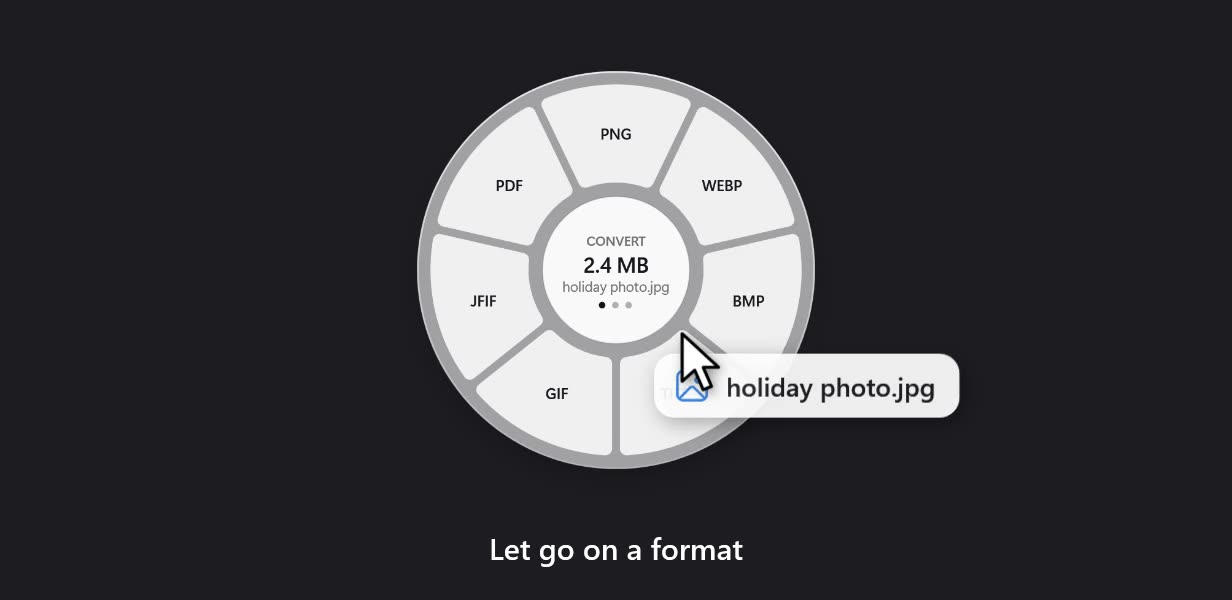
- Right-click any file or folder in File Explorer and choose Lock with OrbitDrop. (Or drag it to the wheel › Actions › Lock.)
- Type a password. The locked file is saved next to the original, or tick Replace the original to swap it.
What happens to each kind of file
- PDF: the same PDF, with a password (AES-256). It opens in any PDF reader.
- Word, Excel and PowerPoint: the same file with Office's own password, when Microsoft Office is on your PC.
- Anything else, and folders: a password-protected ZIP that Windows and a Mac open on their own.
How strong is it?
PDF and Office passwords use strong encryption. ZIPs use standard ZIP encryption, so they open on any PC or Mac without extra apps. That keeps files away from casual eyes, but it's weaker. For something truly sensitive, lock it as a PDF, or use 7-Zip with AES-256 (the other person then needs 7-Zip too).
Keep the original or replace it
By default you get a new file with "(locked)" in its name, next to the original. Tick Replace the original and the original goes to the Recycle Bin, and the locked file takes its name.
Step by step: How to put a password on a PDF on Windows.
What it costs
Lock is part of the OrbitDrop upgrade in the Microsoft Store version: $4.99 once (or the same in your currency), no subscription. You can try it free for a day first. Converting, compressing and merging files stay free.
Questions
Can the person I send it to open it without OrbitDrop?
Yes. It's a normal PDF, Office file or ZIP. Their usual app asks for the password.
What if I forget the password?
There's no way back in, and OrbitDrop doesn't keep a copy of it. Keep the password somewhere safe.
Does it upload my file?
No. Locking happens on your PC.